Guide
How to use Taneleer
From a folder of unsorted files to a collection Komga can read.
Install
Download the DMG, open it, and drag Taneleer into your Applications folder. Taneleer requires macOS 11 or later and checks for updates every four hours; when one has downloaded, the footer says so and offers Restart now or Later.
Set up
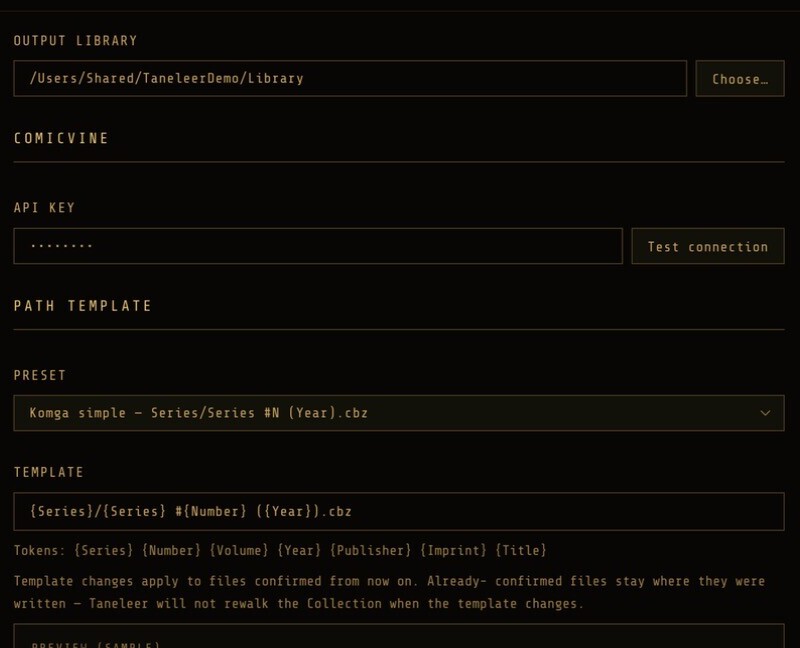
First launch runs a short setup. You will be asked for:
- Source library
- The folder holding your existing comics. Read-only.
- Output library
- Where Taneleer writes finished files. Point Komga here.
- ComicVine API key
- Free from comicvine.gamespot.com/api. Stored locally.
- Path template
- How output files are named and foldered. The default, Komga simple, suits most.
Keep source and output separate. They may be the same folder once you trust the result, but Settings will warn you.
Scan the source library
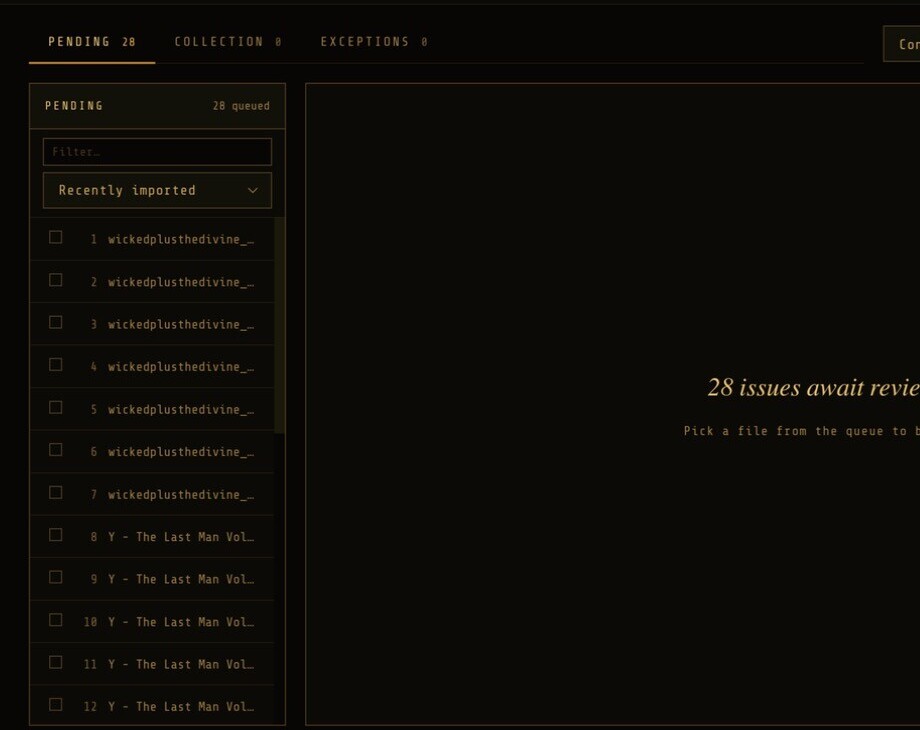
Press Scan source. Taneleer walks the source folder and, for each new or changed file, converts it to CBZ and places it in the pending queue. Files appear in the Pending tab as they are processed, and a status line shows progress.
CBR and PDF files are converted on entry; CBZ files are copied. A file that cannot be read goes to the Exceptions tab with a reason.
Review a file
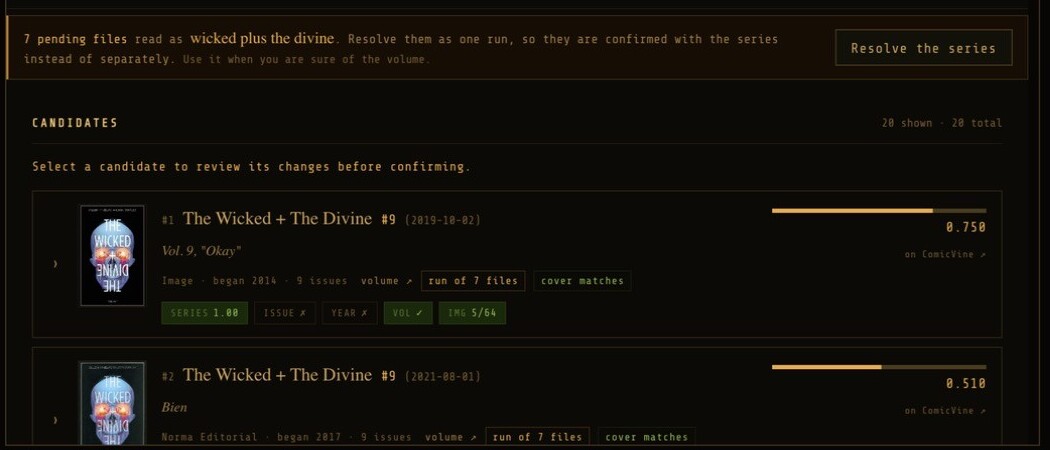
Select a file in the Pending list. The review panel shows its cover, the series, issue, year and volume parsed from the filename, and a ranked list of ComicVine candidates.
Each candidate carries a score and a breakdown:
- SERIES
- How closely the series name matches.
- ISSUE
- Whether the issue number matches exactly.
- YEAR
- Whether the year is within one of the cover date.
- VOL
- Whether the volume matches.
- IMG
- Cover similarity, from a visual fingerprint. A boost, never a gate: variant covers are common.
Each candidate also names its volume: the publisher, the year it began, how many issues it holds, and whether its cover matches, is similar, differs or was not checked. ComicVine files relaunches and foreign editions as separate volumes with the same name, and these details tell them apart.
The cover is worth 20% of a score; the rest comes from series name, issue number, volume and year. How the matching works.
Use ← and → to step through the queue. If no candidate is right, open None of these? to re-search, paste a ComicVine issue or volume link to force a match, or enter the details by hand.
Compare and confirm
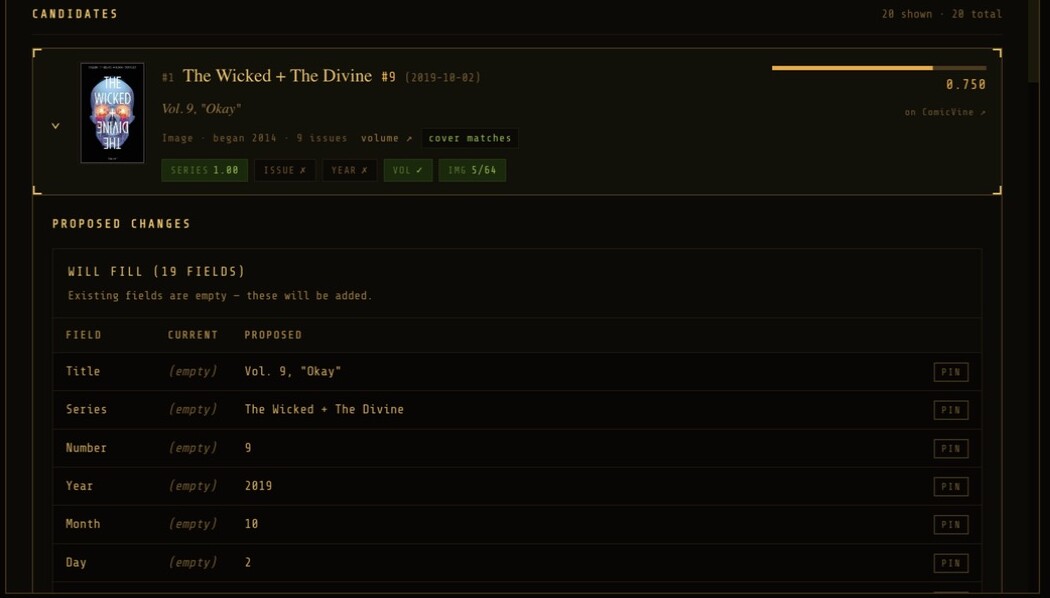
Click a candidate to open its comparison. Fields are divided in two:
- Will fill — the file had nothing there. Always applied.
- Existing fields differ — the file already had a value. Each has a checkbox, all ticked by default. Untick any you wish to keep.
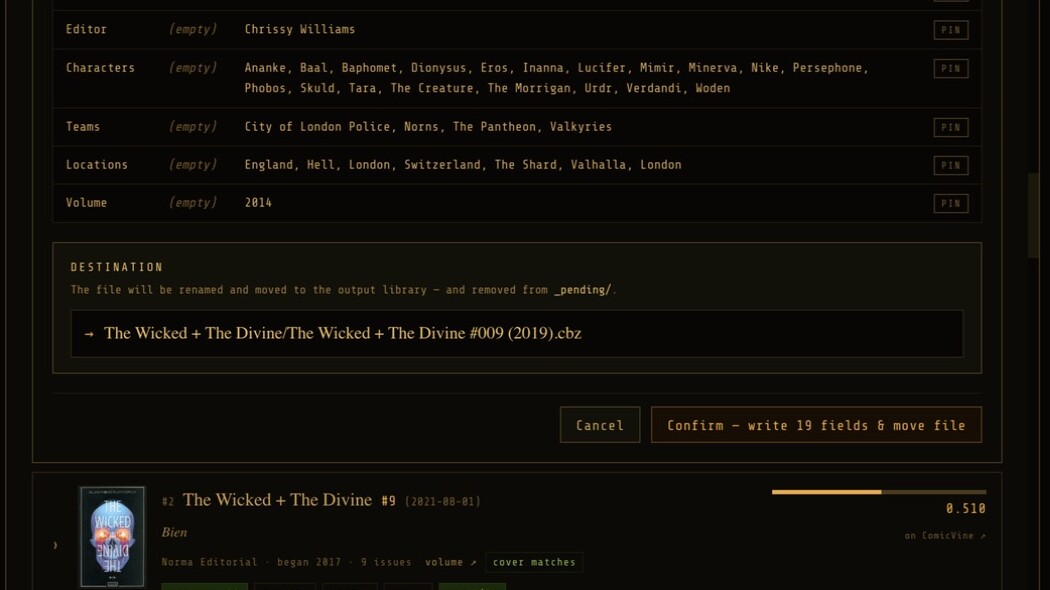
The Confirm button states exactly how many fields it will change. Confirm, and the file is written to the output library at its template path, then the next file opens. Use Skip to defer a file instead.
Confirm in bulk
When a series arrives as many files, confirming one at a time is wasteful. Taneleer has three bulk tools. Each shows its working before anything is written, and each batch can be undone.
Resolve a run
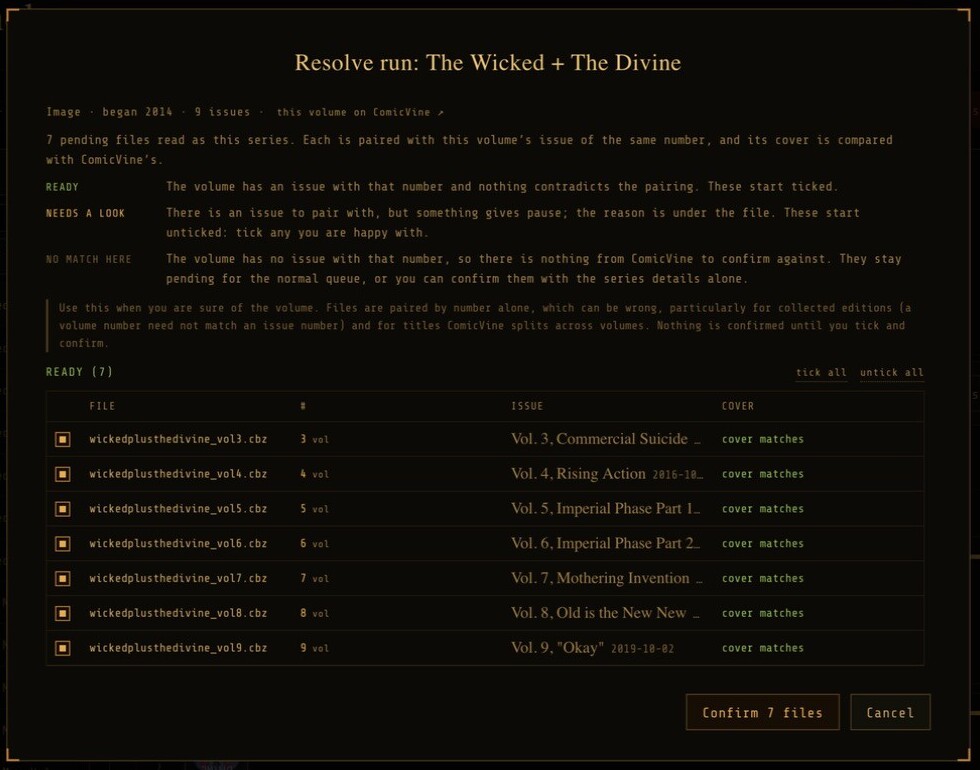
When a candidate’s volume matches several pending files, the review offers Resolve the series (see the banner in the previous step). Each file is paired with the volume’s issue of the same number, and the covers are compared. Files fall into Ready, Needs a look (unticked until you tick them) and No match here.
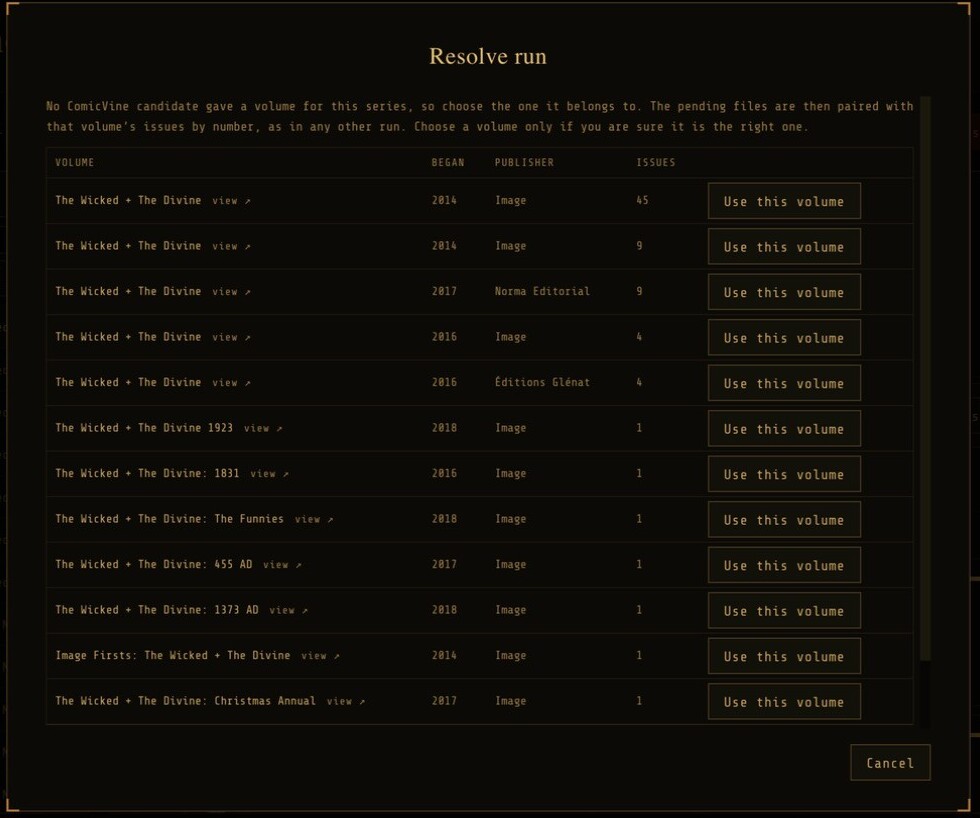
If no candidate gave a volume, Taneleer asks you to choose one. Check its publisher, start year and issue count; each volume links to its ComicVine page.
Where ComicVine lacks some issues, Confirm with series details files those with the volume’s details and their own number. Where it splits a title across volumes, the dialog offers the other volumes that hold the missing numbers.
Pairing is by number alone. Use this when you are sure of the volume, particularly for collected editions, where a volume number need not match an issue number. Nothing is written until you tick files and confirm.
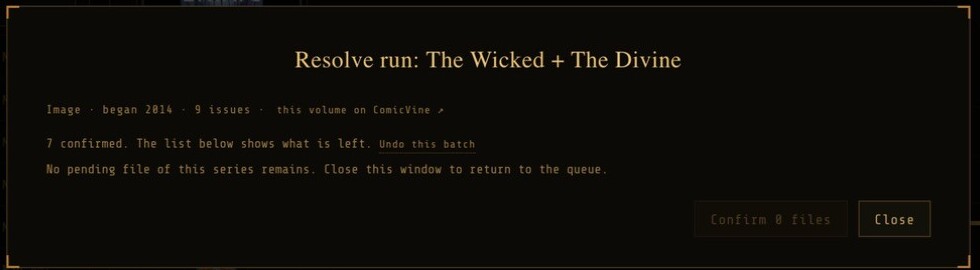
If a batch was a mistake, Undo this batch puts all of its files back in pending, exactly as they were. Any file you have changed since is left as it is, and you are told which.
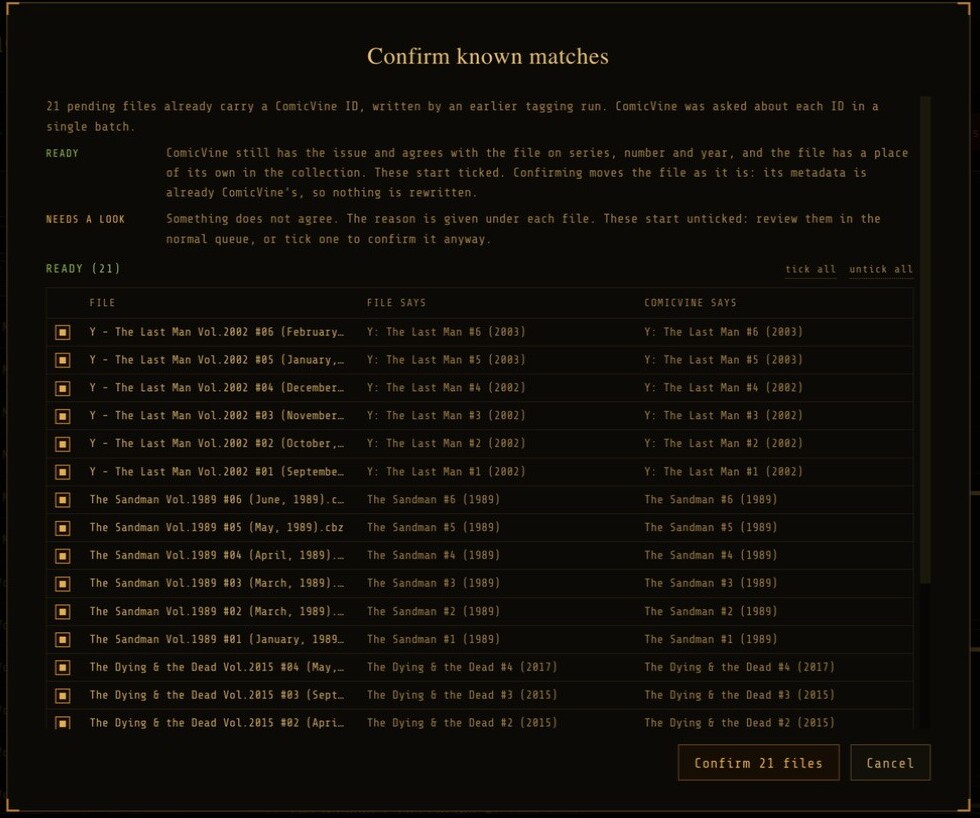
Confirm known matches
Pending files that already carry a ComicVine ID are checked against ComicVine in batches. Those it still agrees with start ticked; anything it disputes starts unticked. The button appears in the Pending header.
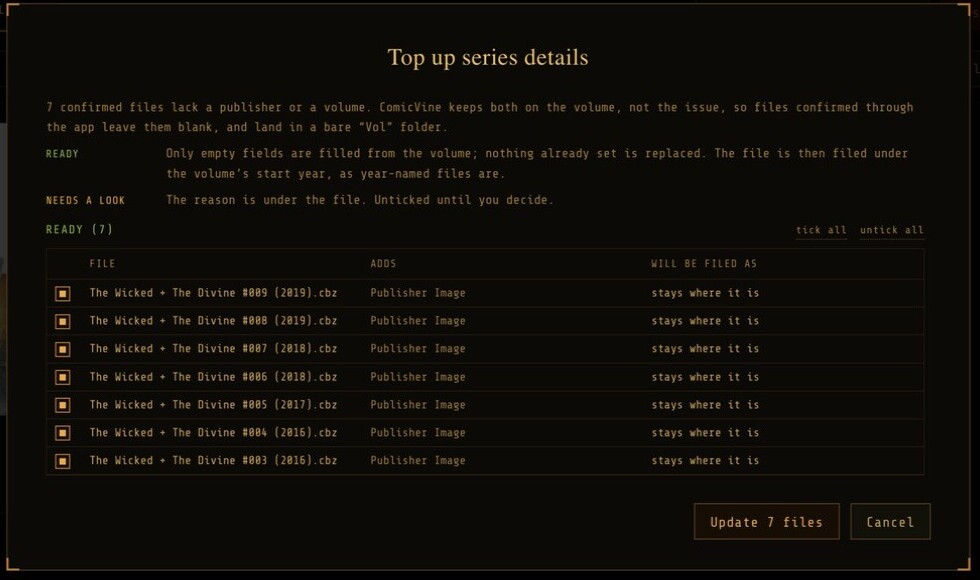
Top up series details
In the Collection tab, fills a confirmed file’s empty Publisher and Volume from its ComicVine volume. A file sitting in a bare Vol folder is re-filed under the volume’s start year. Translated editions are flagged rather than filled.
The collection and exceptions
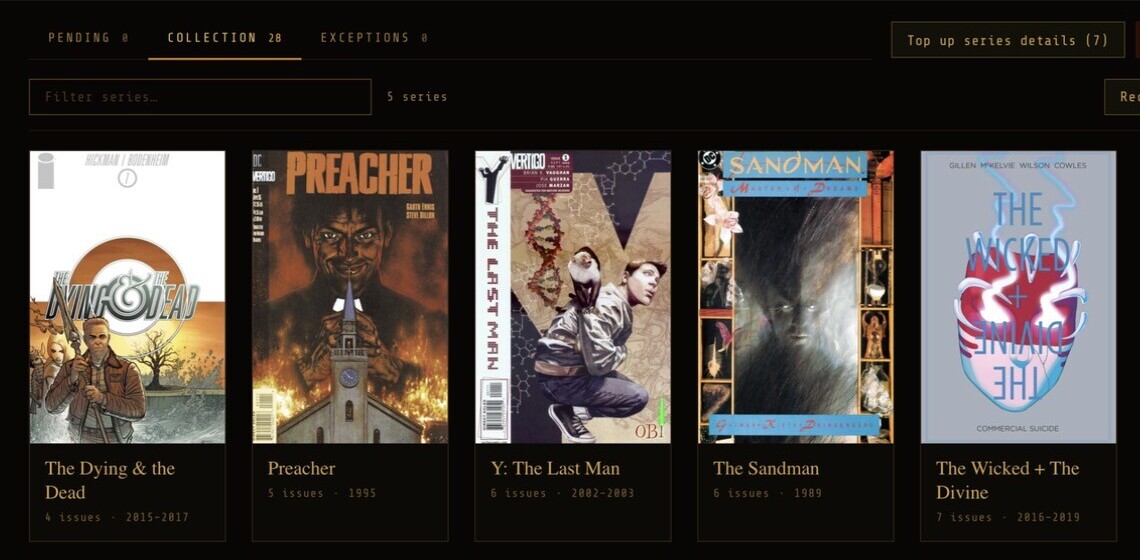
The tab counts show where every file went. Confirming moves one from Pending to Collection; the numbers change together.
- Collection — confirmed issues, newest first. Open a file or re-enrich it.
- Exceptions — files that could not be read (Compromised) and files you skipped. Each can be re-imported, or all broken files at once with Re-import all broken; a skipped file can be moved back to Pending. The duplicate scan flags files whose source has gone, and Remove from manifest clears the row without touching any file.
Re-enrich later
Right-click an issue in the Collection and choose re-enrich to review it against ComicVine again. The row turns amber while under examination. Confirm to apply changes, or cancel and nothing is altered. Re-enrichment is never automatic.
Going further
- Auto-apply
- Settings: Manual (default), Assisted or Aggressive, with a score threshold. Only files with no existing metadata can be applied automatically.
- Series aliases
- Teach Taneleer that
seventoeternitymeans Seven To Eternity, by prefix or regex, with a live test field. - Duplicates
- Covers are fingerprinted to flag visual duplicates. The threshold is adjustable.
- ComicVine limits
- The footer shows your request budget. When the limit is reached Taneleer says so, waits, and resumes by itself. The next file is searched in the background while you review, which can be switched off in Settings.
- Watch mode
- Optionally rescan the source library automatically when files change.
- Komga
- Enter your Komga URL, credentials and library ID; a scan fires after each confirmation.
- Statistics
- Totals and top publishers, series and years, from Settings.
Press ⌘/ in the app for keyboard shortcuts.
Questions
Will Taneleer change my original files?
No. The source library is read-only. All output is written to the output library.
ComicVine says the rate limit is reached.
ComicVine allows about 200 requests an hour. Taneleer says when it is waiting, pauses, and resumes by itself. Work already done is kept.
A file shows as Compromised.
It could not be read or converted. The Exceptions tab gives the reason. Open the source, repair or replace it, then choose Re-import.
Can I delete a file from the collection in Taneleer?
Not directly. The source library is the source of truth; remove the file there. In bulk, you can retire rows from the Collection while leaving output files in place.
Taneleer is free. Can I support it?
Yes, optionally, through Ko-fi. Nothing is locked behind it.
Is there a Windows version?
Not at v1. A portable build is planned after release.